INSTRUCTIONS FOR RECORDING YOUR SIGNAL USING
REMOTE SDR RECEIVER (Example Using One in
Dahlonega, GA)
Once you learn to
do this, it is fun to use and useful to check propagation and changes in
settings.
When
propagation is right for you to be heard in GA:
1. Click on
http://websdr.lumpkinschools.com/?tune=3985lsb
2. To get audio working click the box in the upper left hand:

On the TAB for this page is a speaker icon:

Clicking on the speaker icon mutes/un-mutes the speaker (shown here muted).
3.
Mute the speaker. IF YOU DO NOT DO THIS THERE WILL BE TERRIBLE AUDIO
FEEDBACK SINCE YOUR TRANSMITTED
AUDIO IS
COMING BACK THROUGH THE COMPUTER SPEAKER AND WILL BE PICKED UP BY YOUR
MICROPHONE
4. Get radio ready to transmit.
5. Click the Audio Recording START button:
 The START will change
to STOP button.
The START will change
to STOP button.
6.
Make transmission on the transceiver ... this will be recorded.
7. Click the STOP button:

8.
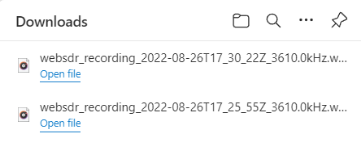
Click "download" to put the recording on your PC.

By
default this is usually puts the recording in the C:/Downloads folder. It will
be a *.wav file. Depending on your PC and browser, etc. the file may show up in
a clickable window in the browser like this:
9.
Locate the file and click (maybe double click depending on you system and
settings), and your PC default audio player should play the file.
This works for any of the remote SDR receivers but each has a different
interface and location of the record button, etc. I think the GA SDR has the
easiest interface to use.
Rev: 25 June 2024